Knowledge base / Excel
RANDBETWEEN in Excel: bounds, repeats and fixed results
I explain inclusive limits, saving generated values and why multiple random draws cannot guarantee a unique set.
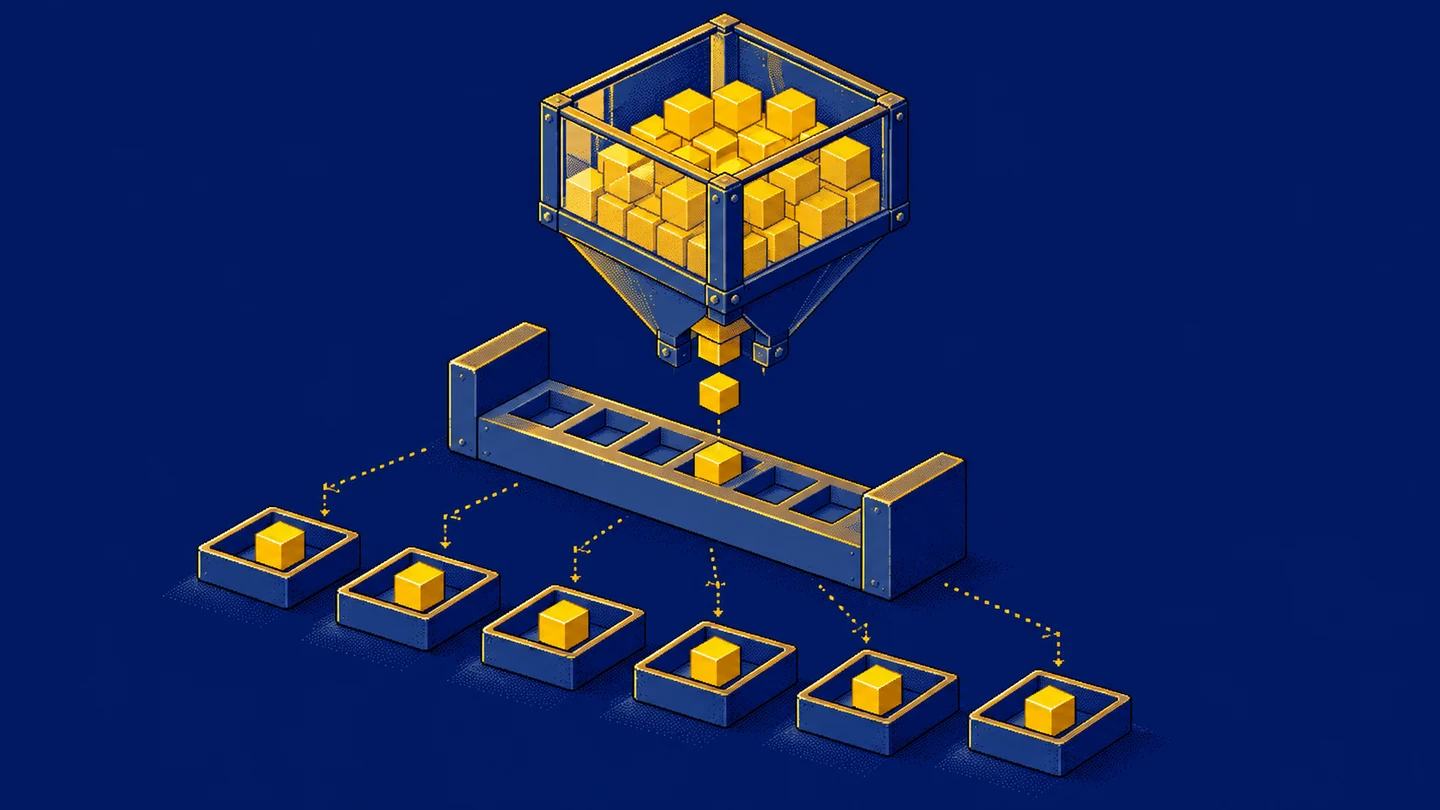
When I need synthetic integers for an exercise, I use RANDBETWEEN. I specify lower and upper limits, and Excel returns one random integer in that range. Two details matter more than the short formula: recalculation can generate another result, and successive draws can repeat. The function does not reserve numbers already selected elsewhere in the worksheet.
Syntax and availability
In English Excel using commas between arguments:
=RANDBETWEEN(1,6)The Polish name is LOS.ZAKR. This example chooses an integer from 1 through 6, including both endpoints. Either 1 or 6 is valid; I do not give one fixed expected draw. Microsoft’s documentation defines the function and lists availability including Microsoft 365, Excel 2024, 2021, 2019 and 2016.
I use explicit integer bounds here. Regional settings may change argument and decimal separators. If a formula is rejected during entry, check the function language and list separator before changing the intended calculation.
Small ranges make the boundaries clear
These synthetic examples show possible results rather than output from an executed workbook:
| Formula | Possible integers |
|---|---|
=RANDBETWEEN(1,3) |
1, 2, 3 |
=RANDBETWEEN(-1,1) |
-1, 0, 1 |
=RANDBETWEEN(5,5) |
5 |
The arguments define the smallest and largest allowed integers. The range from 1 through 3 contains three possibilities. Equal bounds leave one possible result. Keep the lower bound no greater than the upper bound rather than expecting reversed arguments to be sorted automatically.
Copying the expression to several cells creates several draws. A sequence such as 2, 2, 1 is valid for bounds 1 and 3. A small sample need not contain every allowed number. Recalculating also does not guarantee a visibly different result in a particular cell: another draw can produce the same integer.
Preserve the result when it becomes data
Microsoft describes regeneration when the worksheet recalculates, including manual recalculation with F9. Entering data elsewhere can also trigger calculation. Editing or reopening a workbook may therefore change an exercise dataset. Saving formulas is different from preserving their current results as fixed data.
After accepting a generated set, I copy the cells and paste values. The numbers remain while the generating formulas are removed. Paste options distinguishes values from formulas and formatting. Before handing over the workbook, inspect the formula bar to confirm the selected range contains constants.
If the exact dataset must be reproduced later, preserve the output and its range and purpose. RANDBETWEEN has no seed argument. Knowing that values were drawn between 1 and 100 does not let another person regenerate the identical list.
Decimal values on a fixed grid
For values from 1.0 to 3.0 in steps of 0.1, use:
=RANDBETWEEN(10,30)/10First, an integer from 10 through 30 is selected; division by 10 then produces one of the allowed tenths. This is a finite grid including both 1.0 and 3.0. It does not produce every possible real number between those bounds. Cell formatting separately controls how many decimal places are displayed.
The distribution and dependencies should fit the purpose of a simulation. Simple random numbers are convenient for synthetic training data, but they do not establish that a dataset behaves like actual sales or measurements. Choose the model deliberately rather than treating random-looking output as evidence of realism.
Sampling without replacement needs another approach
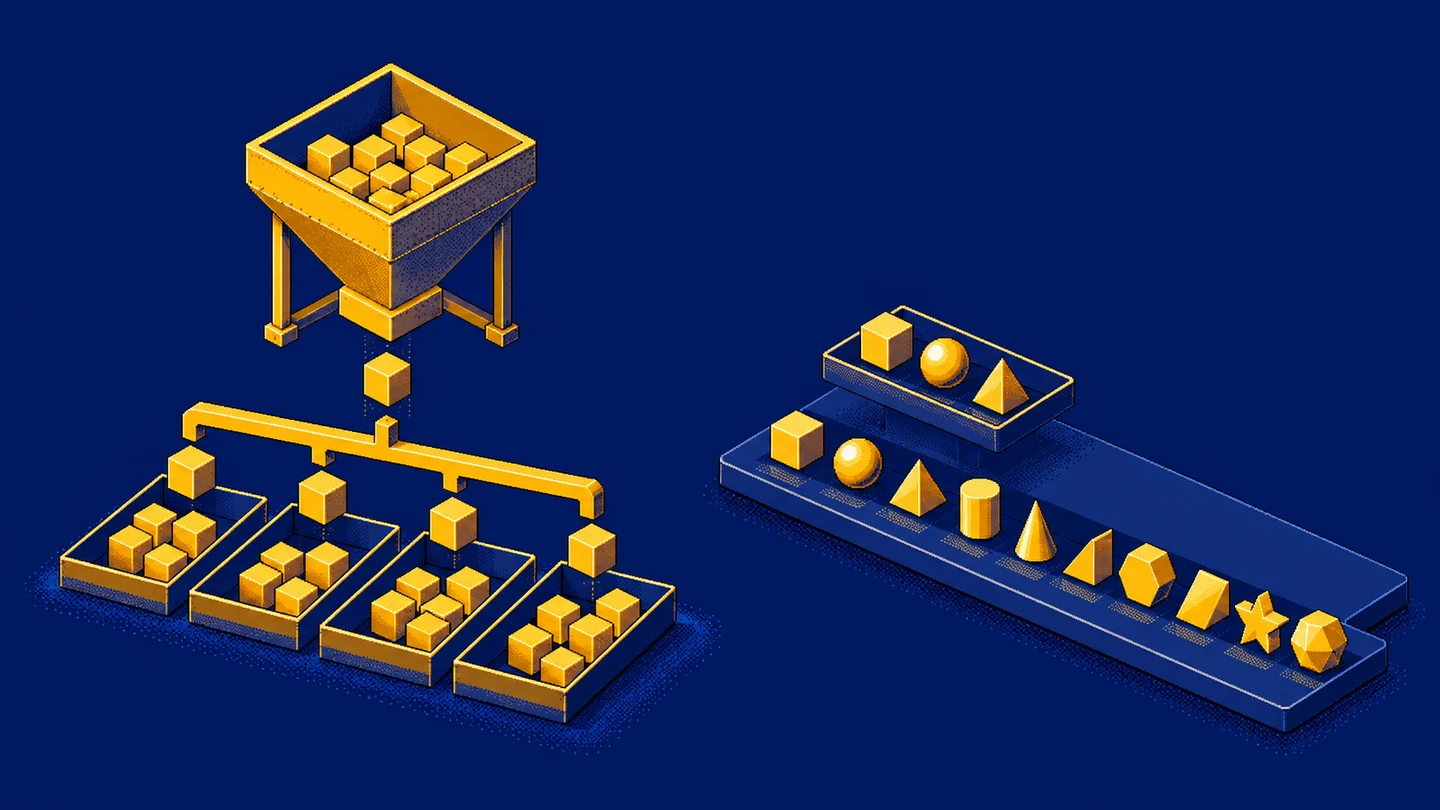
One RANDBETWEEN draw returns one integer. Wrapping it in a function that removes duplicates does not create a list of five unique results. Removing duplicates from several draws would not guarantee exactly five distinct items either, because the number remaining depends on what was drawn.
For a simple exercise, prepare a list containing each integer from 1 through 20 once. Add =RAND() beside each item, fill down, and freeze those helper results as values. Sort the entire table by the helper column, then select the first five rows. RAND supplies shuffle keys; uniqueness comes from the original list.
Sort complete rows so identifiers stay attached to their other fields. If helper keys tie, define a tie rule or reshuffle. This is a practical ordering exercise rather than a universally appropriate research sampling design. An important study also needs a defined population and a justified selection procedure.
Check your own worksheet
Create a few draws between 1 and 3. Check the boundaries and accept repetitions as possible outcomes. Freeze the results and confirm that recalculation no longer changes that set. Finally, compare repeated draws with shuffling a list that contains each item once.
If you need values from zero up to but excluding one, read the RAND entry. Choose the function by defining allowed results and whether repetitions are acceptable. That keeps an integer generator distinct from selecting unique records.
Key takeaways
Are the endpoints included?
Yes. RANDBETWEEN(1,6) can return either 1 or 6.
Will every cell get a different number?
No. Separate draws can repeat, and recalculation can return the same visible integer.
How do I preserve a draw?
Copy the cells and paste values to keep the accepted results without generating formulas.
AI was used in an automated way while working on this article. If you want to learn how to do it too, check out this project.